Category: Productivity

  • How to Shrink Pictures Without Quality Loss: 2026 Resizing Guide

    How to Shrink Pictures Without Quality Loss: 2026 Resizing Guide

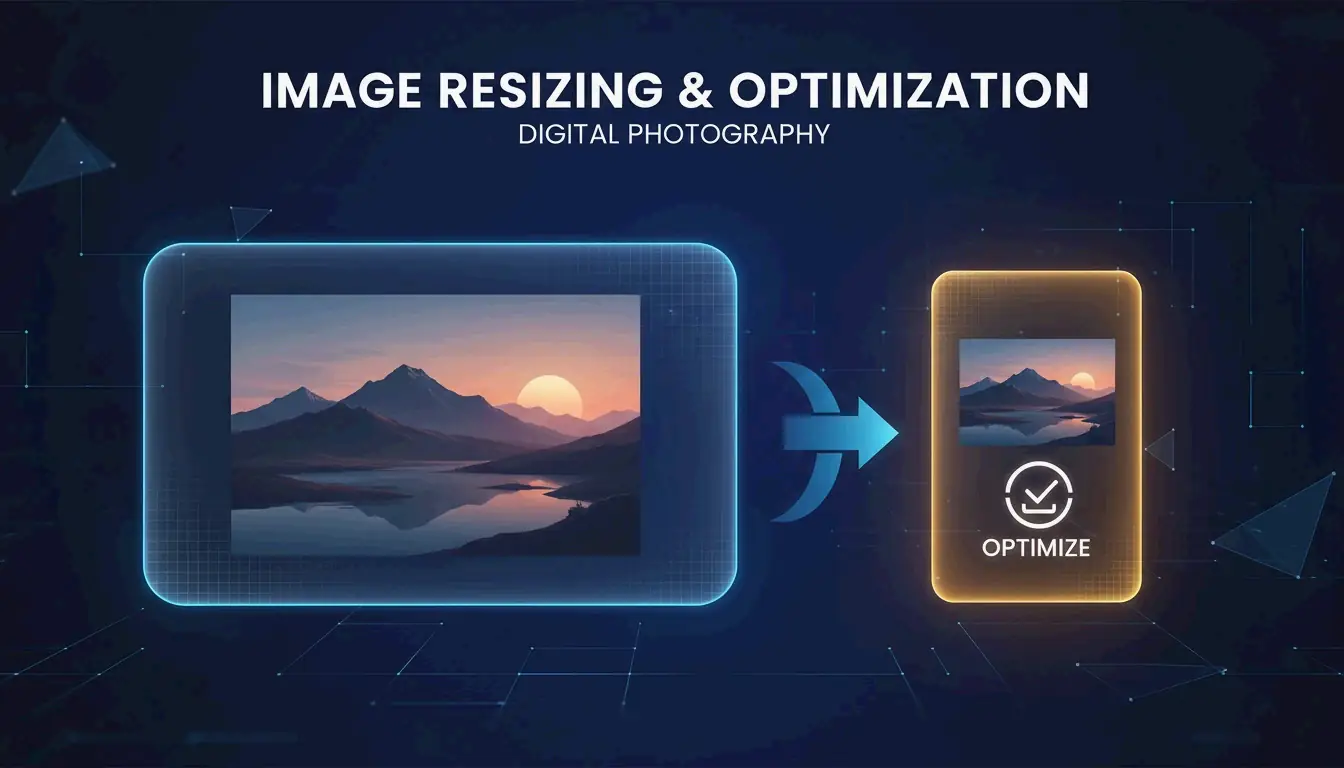
    Shrink a 6MB smartphone photo to 300-700KB by resizing to 1200px width and saving at 80-85% JPEG quality. For maximum compression, convert to AVIF or WebP. Built-in tools (Preview, Photos) handle single files; BIRME or ImageMagick handle bulk batches.

    Built-in Tools: Mac, Windows, and Mobile

    Mac: Preview

    1. Open image in Preview.
    2. Tools → Adjust Size.
    3. Ensure “Scale proportionally” is checked.
    4. Set target width (e.g., 1200px). Height adjusts automatically.

    Windows: Photos App

    1. Open image in Photos.
    2. Click three-dot menu (…) → Resize image.
    3. Select a preset or enter custom dimensions.

    Microsoft Paint alternative: Home → Resize → switch to “Pixels” → set width.

    iPhone: HEIC High Efficiency Mode

    Switch to Settings → Camera → Formats → High Efficiency. Photos save as HEIC — roughly 50% smaller than JPEG with no quality loss. Per Wondershare UniConverter, this is the single biggest space saver for iCloud Photos.

    Resizing vs. Compressing: What’s the Difference?

    Action What Changes Example
    Resizing Pixel dimensions (width × height) 4000px → 1200px
    Compressing File size (MB/KB) 6MB → 400KB

    Resizing removes pixels. Compressing re-encodes data more efficiently. Both reduce file size, but resizing delivers the largest savings.

    Bulk / Batch Resize Tools

    For hundreds of photos, use browser-based or command-line tools:

    Tool Platform Batch Support Privacy Command
    BIRME Browser Yes Local (JS) Drag-and-drop GUI
    Private Convert Browser Yes Local (JS) Upload interface
    ImageMagick CLI Yes Full offline magick mogrify -resize 1200x *.jpg
    sips (macOS) CLI Yes Full offline sips -Z 1200 *.jpg

    BIRME also offers Smart Cropping — AI detects the focal point and keeps it centered while trimming edges to fit new dimensions.

    Maintaining Aspect Ratio

    Always resize proportionally. Forcing a rectangular image into a square without cropping causes visible stretching. Lock the aspect ratio, or use tools that auto-detect and preserve it.
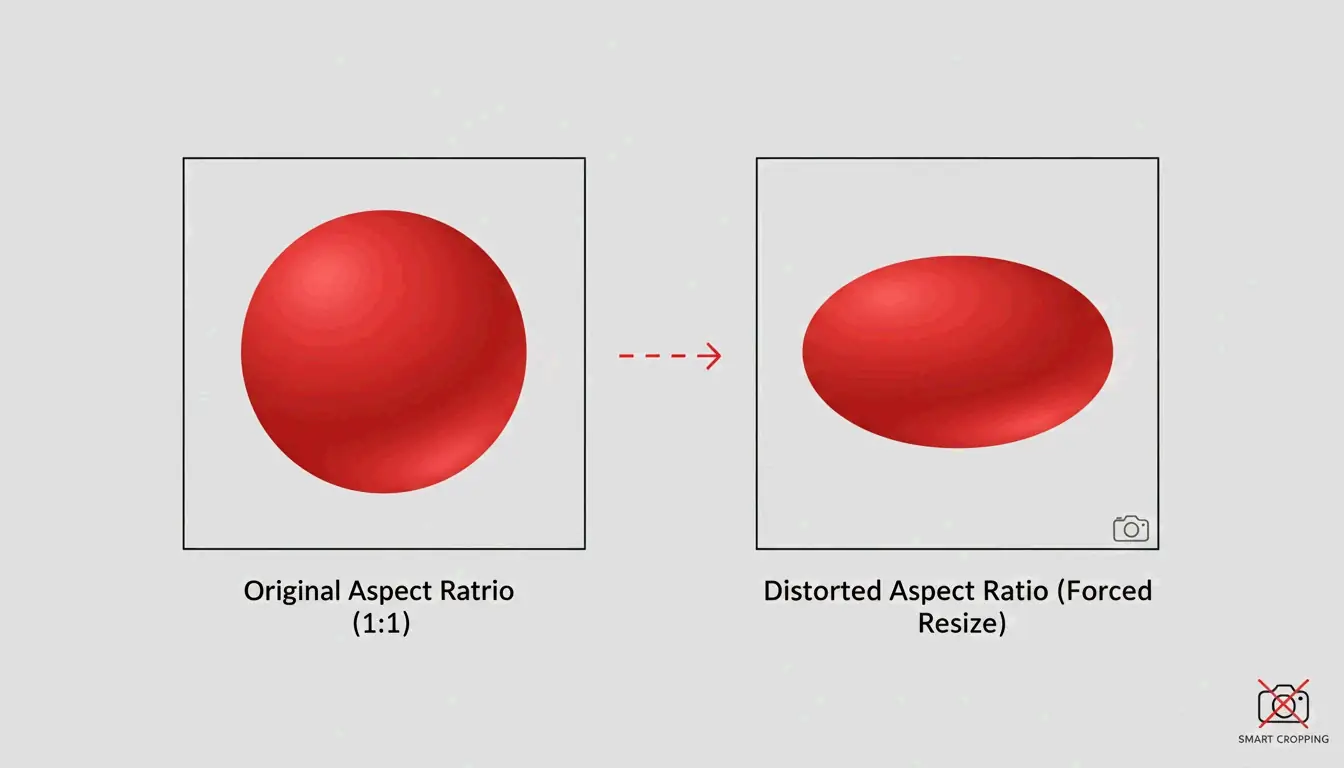
    Correct aspect ratio vs. distorted stretching

    Format Decision Guide for 2026

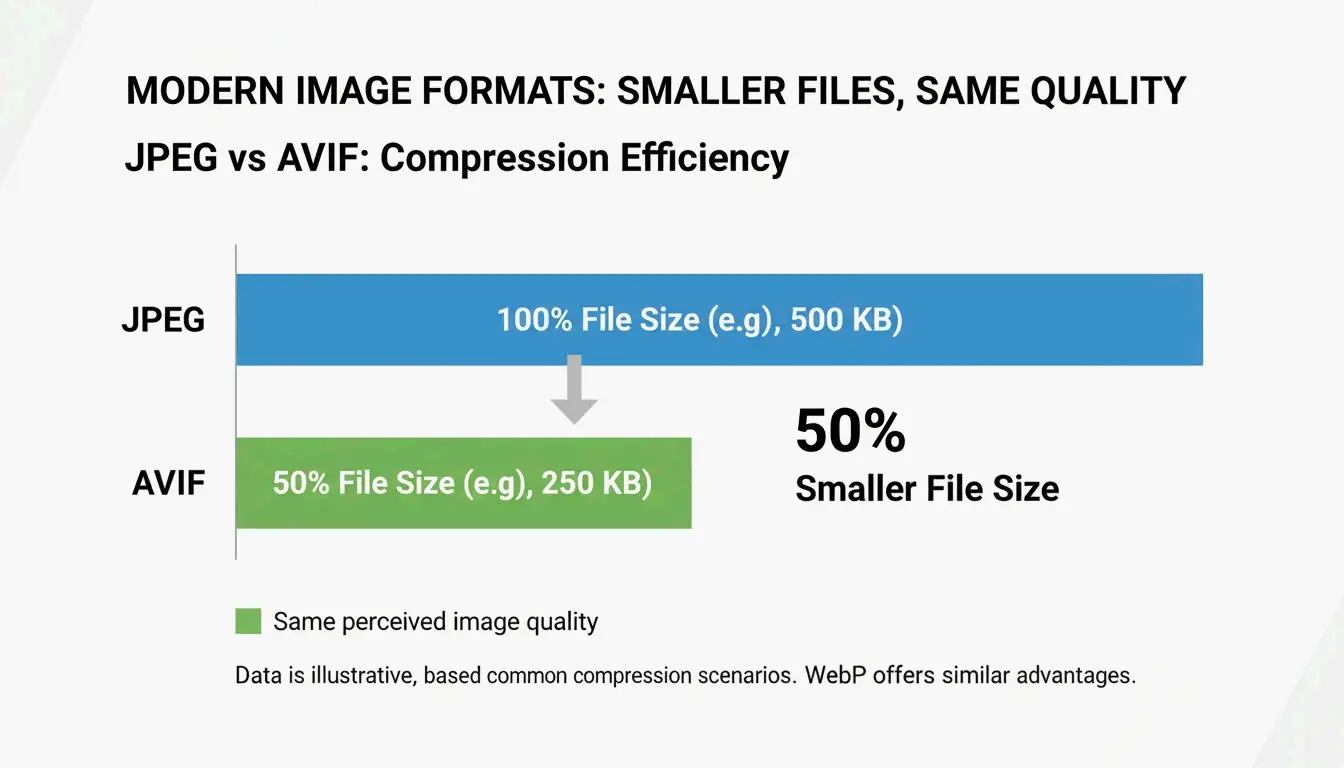
    JPEG vs AVIF file size comparison

    Goal Format Why
    iPhone/Mac local storage HEIC 50% smaller than JPEG, native Apple support
    Website performance AVIF or WebP Up to 50% smaller than JPEG, 97%+ browser support
    Maximum compatibility JPEG (80%) Opens on any device, any OS

    Per Private Convert, AVIF offers 50% better compression than JPEG at equivalent visual quality.

    Social Media Dimensions: Pre-Resize to Avoid Auto-Shrink Blur

    Platforms like Instagram and TikTok apply aggressive auto-compression. Uploading 4K files often produces worse results than uploading at the platform’s native resolution.

    Platform Recommended Size Format
    Instagram/TikTok Reels 1080 × 1920 px JPEG or WebP
    Instagram Square Posts 1080 × 1080 px JPEG or WebP
    YouTube Thumbnails 1280 × 720 px JPEG

    Per the TikTok Creator Community, 1080p uploads often look sharper than 4K because the platform’s compression engine handles smaller files more cleanly.

    Conclusion

    Shrink pictures in three steps: resize to target dimensions using built-in tools or batch processors, maintain aspect ratio, and save in a modern format. For iPhone storage, switch to HEIC. For web, convert to AVIF or WebP at 80% quality. For social media, pre-resize to platform-native dimensions to avoid auto-shrink artifacts.

    FAQ

    What is the difference between resizing and compressing?

    Resizing changes pixel dimensions (4000px → 1200px). Compressing reduces file size by re-encoding data, often without changing dimensions. Both reduce file size, but resizing provides the largest reduction.

    Why do pictures look blurry after shrinking?

    Shrinking removes pixels. If you later enlarge the image, the computer must interpolate missing pixels, producing softness. Blurriness from compression occurs when quality drops below 60%, creating blocky artifacts.

    How do I resize images on my phone without installing an app?

    iPhone: Use the Shortcuts app to create a “Resize Image” shortcut that works from the Photos share sheet. Android: Open a browser-based tool like Private Convert in Chrome — resize in the browser without installing anything.
  • How to Compress Image Without Losing Quality (2026): Resize, Compress, Convert

    How to Compress Image Without Losing Quality (2026): Resize, Compress, Convert

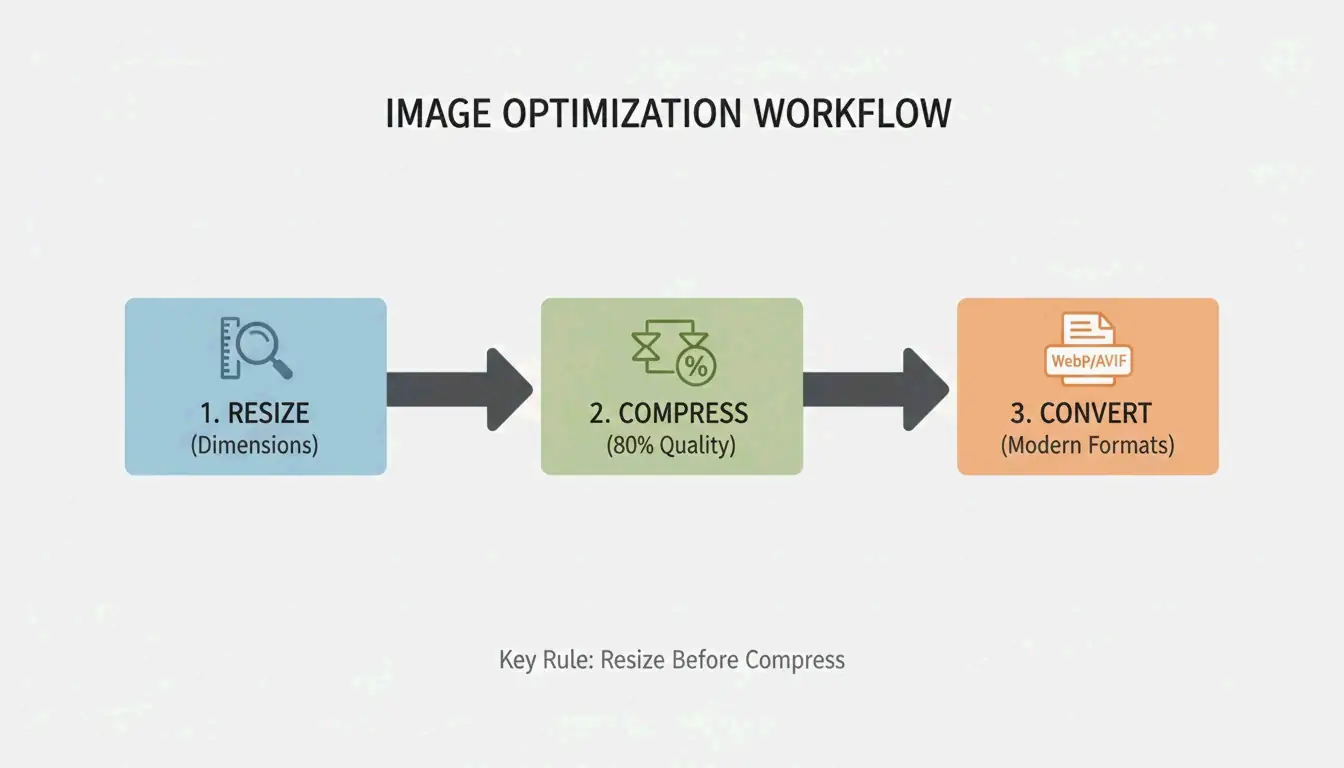
    Resize to display dimensions, compress at 75-85% quality, convert to WebP or AVIF. This 3-step workflow delivers up to 90% file size reduction with no perceptible quality loss. Here is the complete 2026 method.

    3-Step Workflow: Resize → Compress → Convert

    3-step compression workflow

    Step 1: Resize to Display Dimensions

    The largest single optimization is matching pixel dimensions to display size. Modern phones shoot 4000-6000px wide — far beyond web needs. As G Saunders demonstrates, scaling from 18,000px to 800px achieved a 99% file size reduction before any compression.

    Use Case Recommended Width Typical File Size After Resize
    Blog hero image 1200px 200-400 KB
    Product photo 800px 80-200 KB
    Thumbnail 300-400px 20-50 KB
    Social media 1080px 100-300 KB

    Step 2: Apply Lossy Compression at 75-85%

    After resizing, apply lossy compression using encoders like MozJPEG. The 75-85% quality range is the sweet spot. Per Intellure, dropping from 100% to 85% quality cuts file size by 60% with virtually no visible difference.

    Quality Setting File Size Reduction Visual Impact
    90-100% 10-20% Identical to original
    75-85% 50-70% Imperceptible to human eye
    50-70% 70-85% Slight artifacts on close inspection
    Below 50% 85%+ Visible banding and softness

    Step 3: Convert to WebP or AVIF

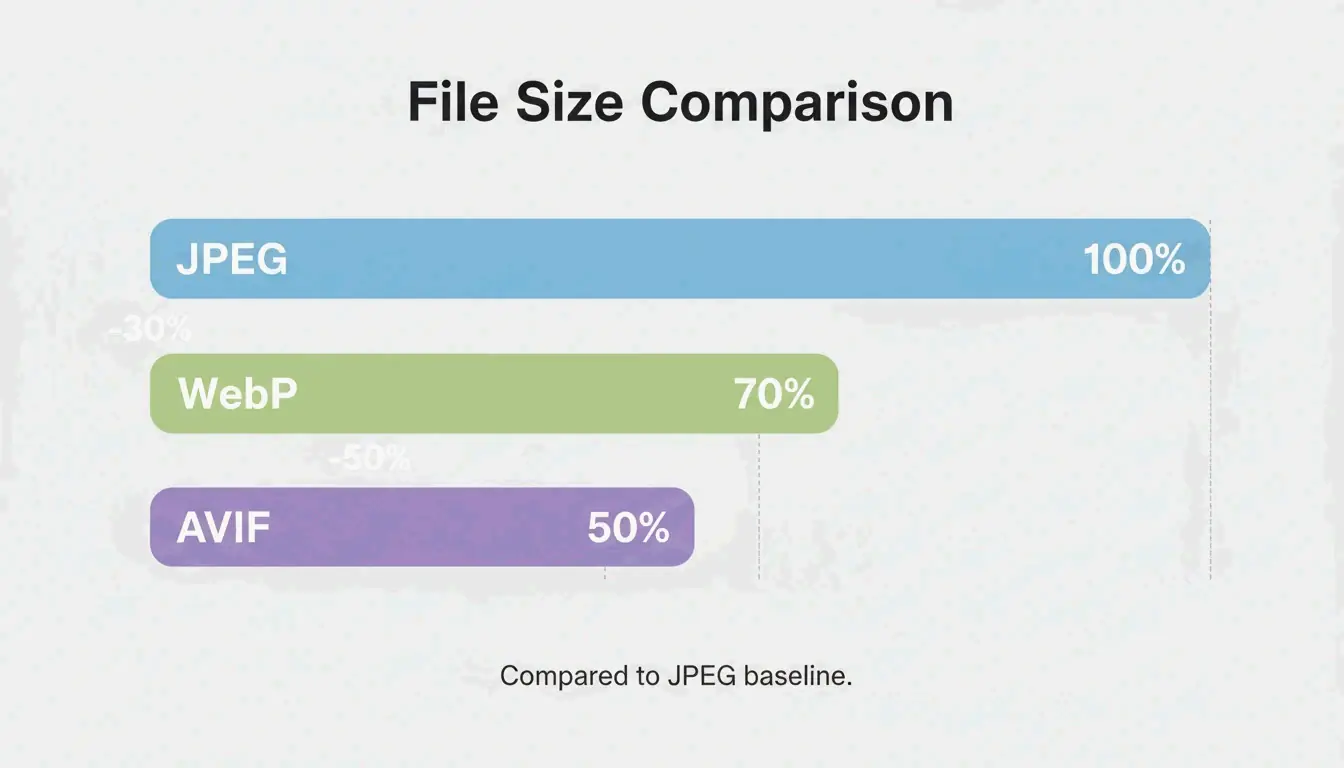
    Format comparison: JPEG vs WebP vs AVIF file sizes

    Format Size vs. JPEG Browser Support (2026) Best For
    WebP 25-34% smaller 97%+ General web use, LCP images
    AVIF Up to 50% smaller 92%+ Maximum compression
    JPEG Baseline 100% Universal fallback

    Data from Google Developers confirms WebP is 25-34% smaller than JPEG at equivalent quality. AVIF pushes further with up to 50% better compression.

    Also strip non-essential EXIF metadata (GPS, camera settings, timestamps) — saves 5-50 KB per file and protects privacy.

    Lossy vs. Lossless: When to Use Each

    Mode How It Works Savings Use For
    Lossless (PNG, OptiPNG) Preserves every pixel 5-30% Logos, icons, text screenshots, sharp edges
    Lossy (JPEG, WebP, AVIF) Removes imperceptible data 50-80% Photos, hero images, product shots

    For web photographs and complex images, lossy at 75-85% quality is the standard. For logos and text-heavy graphics, use lossless to preserve sharpness.

    SEO Impact: Core Web Vitals and LCP

    Google’s Core Web Vitals use Largest Contentful Paint (LCP) as a ranking signal. Images account for approximately 70% of all LCP elements (web.dev).

    Metric Impact
    53% of mobile users leave if load exceeds 3 seconds Bounce rate directly tied to image weight
    LCP threshold: 2.5 seconds Heavy hero images are the #1 cause of failure
    Page speed is a confirmed ranking factor Optimized images = higher search position

    Quality Verification Checklist

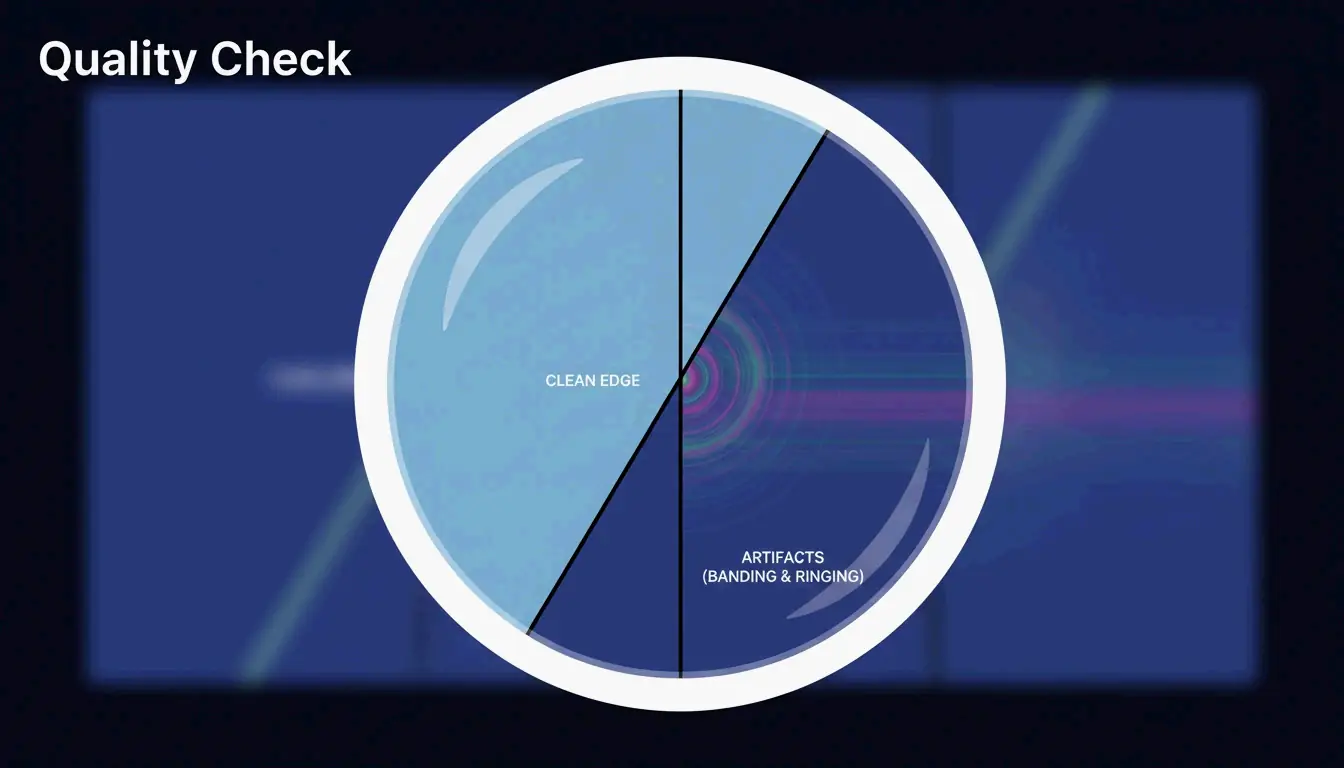
    After compression, zoom to 100% and check for three artifacts:

    Artifact What to Look For Cause
    Banding Stepped color transitions in gradients (e.g., sky) Quality set too low
    Ringing Halos around text or high-contrast edges Over-compression
    Softness Fine details (hair, fabric) turned to blur Excessive lossy reduction

    Visual quality check: focus on detail

    For privacy-conscious workflows, tools like Pixotter and SammaPix use WebAssembly (WASM) for in-browser processing — files never leave your device.

    Conclusion

    Compress images in three steps: resize to display width, apply lossy at 75-85% quality, convert to WebP or AVIF. This workflow delivers up to 90% size reduction with no visible quality loss. Audit your 10 most visited pages — convert hero images to AVIF and target under 200 KB per file.

    FAQ

    Can I compress a PNG without losing any data?

    Yes. Tools like OptiPNG and oxipng optimize the internal DEFLATE algorithm and strip metadata without altering pixels. Savings are modest (5-20%) compared to lossy methods, but pixel-perfect fidelity is preserved.

    Does image compression affect SEO rankings?

    Yes. Page speed is a confirmed Google ranking factor. Images are typically the heaviest page elements. Optimized images improve LCP scores, which directly impacts Core Web Vitals performance and search visibility.

    Is it safe to upload personal photos to online compression tools?

    Use tools with client-side WASM processing — compression happens in your browser, files never touch a server. If using a server-side tool, verify the service deletes files immediately after processing.